# Client Devices (Phones, Tablets, Computers)
# How to retrieve a MAC Address
# Android
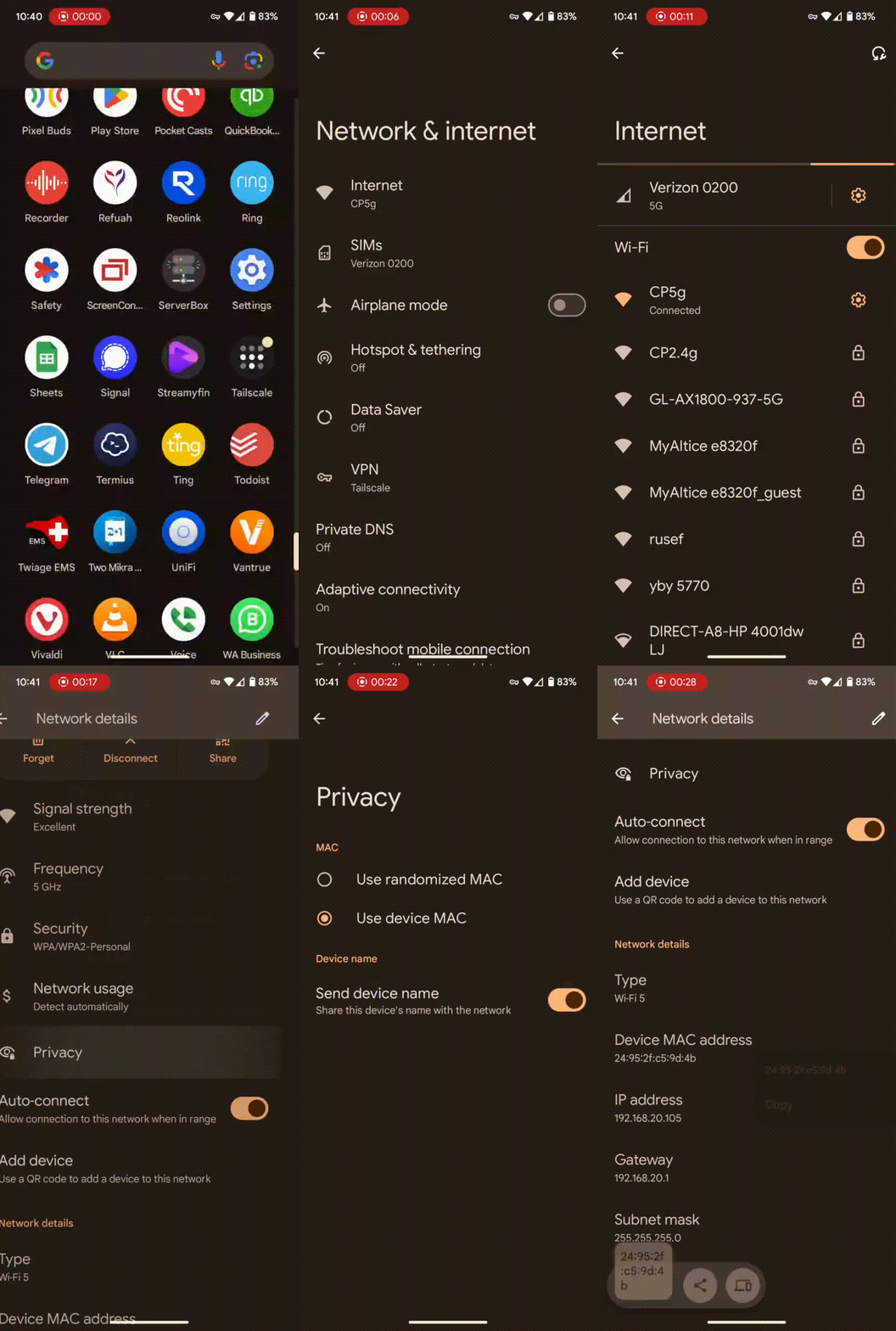
#### How to retrieve the MAC address of an Android device
**Device needs to be connected to the Webguard Router WiFi before proceeding.**
1. Go to **Settings > Network & Internet > Network** or **Internet**
2. Click on the **Settings** icon next to your WiFi name
3. Click on **Privacy**
4. Choose **Use device MAC**
5. Go back to the previous screen
6. Scroll down and look for **Device MAC address**
[](https://docs.webguardpro.com/uploads/images/gallery/2025-02/android-mac-address.gif)
# iOS (iPhone or iPad)
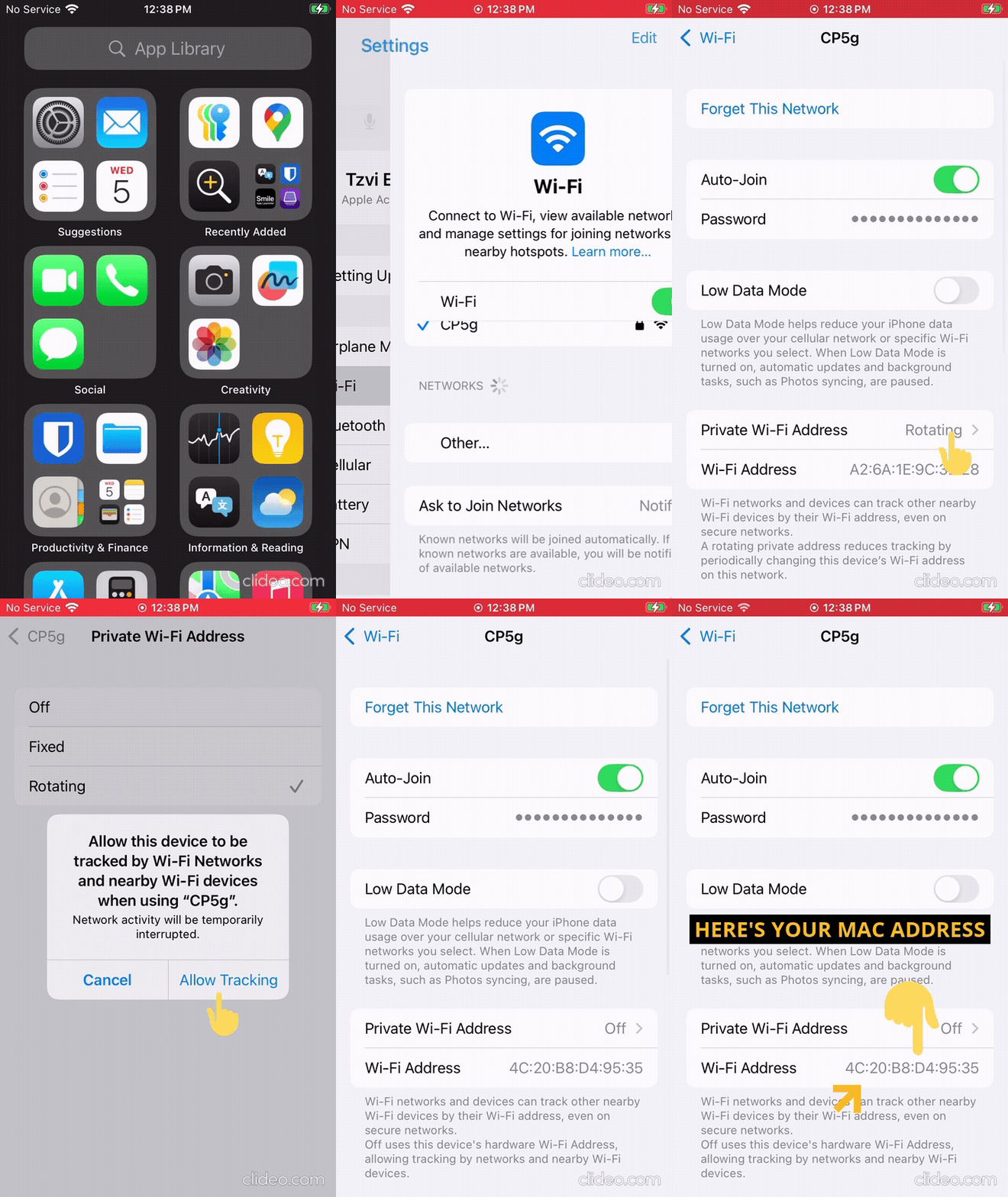
#### How to retrieve the MAC address of an iOS device
**Device needs to be connected to the Webguard Router WiFi before proceeding.**
1. Go to **Settings > WiFi**
2. Click on the **Information** icon next to your WiFi name
3. Disable **Private Wi-Fi Address**
4. Tap **Continue** at the prompt
5. The MAC address will be visible as the **Wi-Fi Address**
[](https://docs.webguardpro.com/uploads/images/gallery/2025-02/ios-mac-address.gif)
# Windows 10/11 Computer
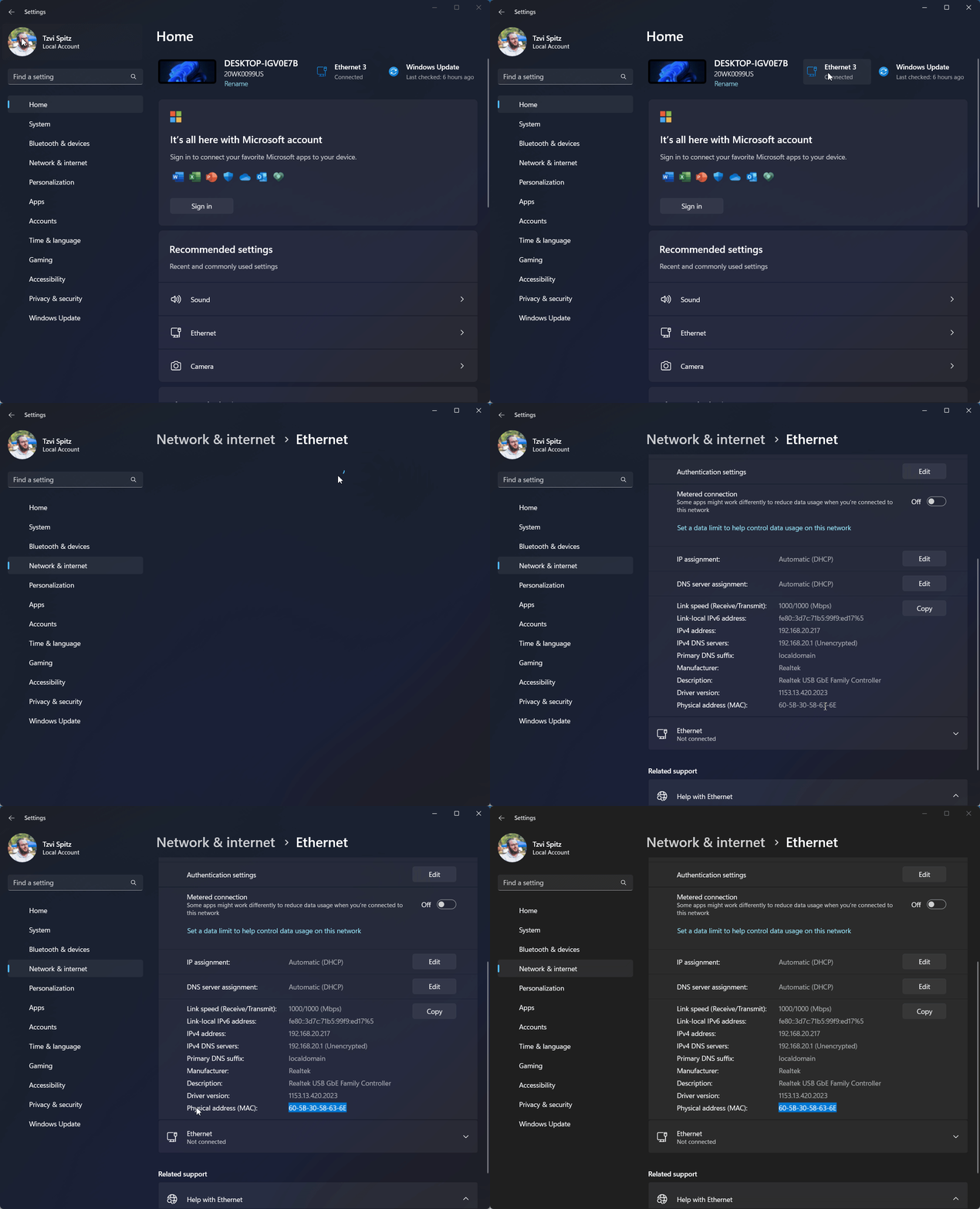
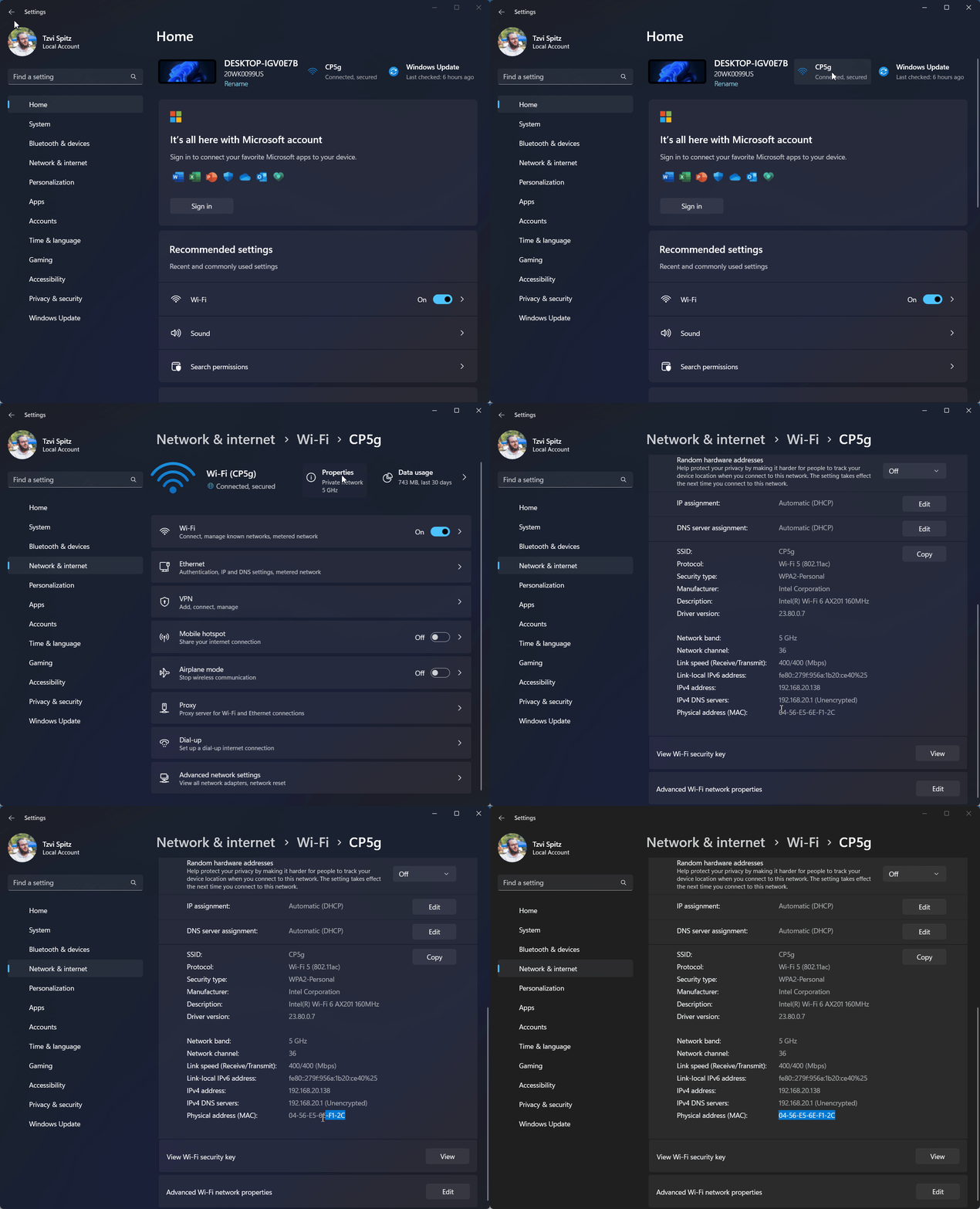
#### How to retrieve the MAC address of a Windows Computer
- Ensure device is connected to the Webguard Pro network - either Wired or WiFi
### Wired Network
[](https://docs.webguardpro.com/uploads/images/gallery/2025-02/applicationframehost-km2r4ndj4g.gif)
### Wireless Network
[](https://docs.webguardpro.com/uploads/images/gallery/2025-02/applicationframehost-vpfroxast7.gif)
### Alternative Method: CMD Line
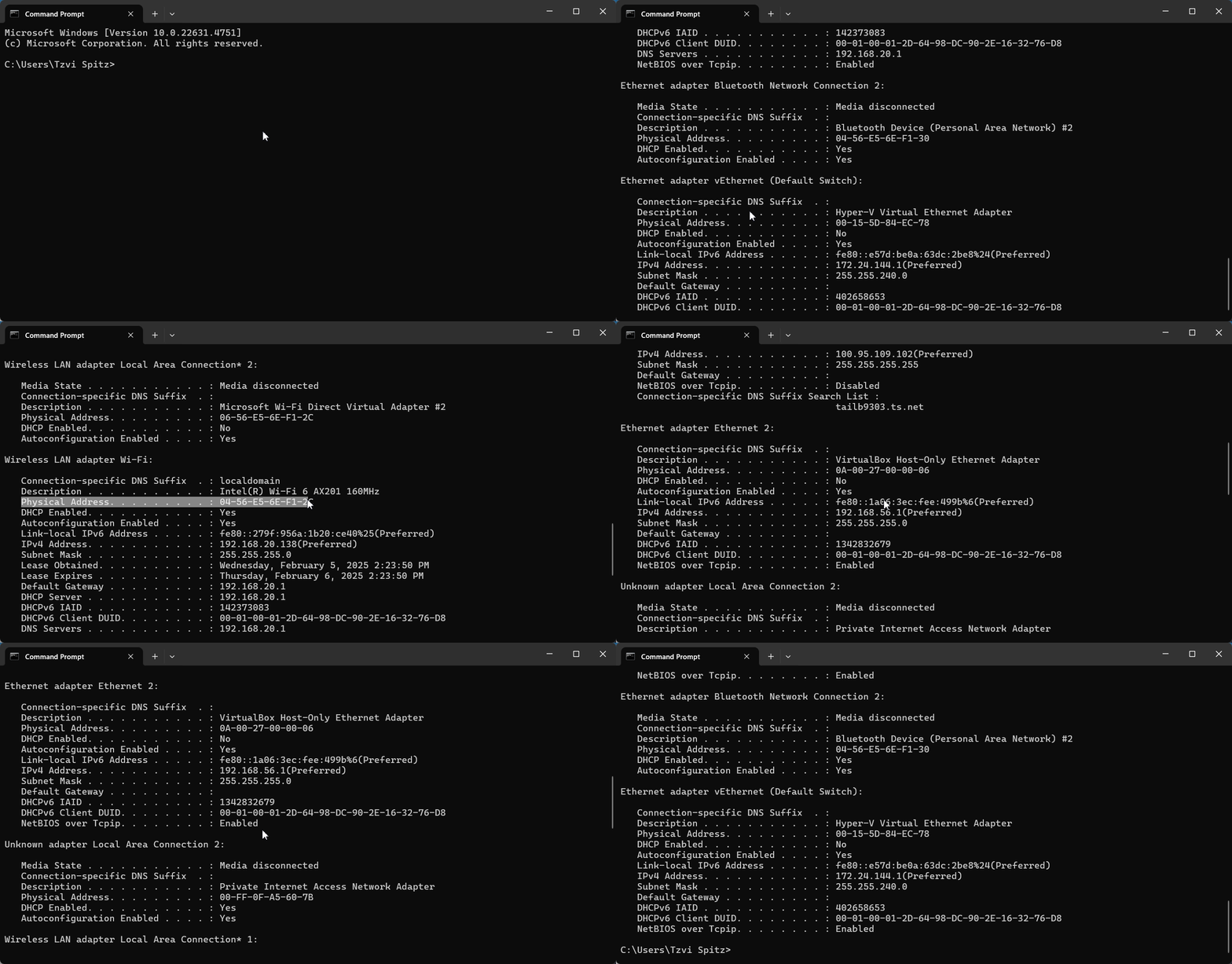
Open the command prompt, and type `ipconfig /all`
- The challenge is to make sure that you're looking at the MAC address for the active interface, and not for any other interface
- Make sure the interface has a real IP address (e.g. 192.168.1.100 or 192.168.8.100)
[](https://docs.webguardpro.com/uploads/images/gallery/2025-02/windowsterminal-x1bgprkgwr.gif)